When a clinical document (e.g., Visit Notes, Physician Orders, OASIS Assessments, etc.) is deleted, it is not completely removed right away. It goes to a Trash Bin, in case it needs to be retrieved.
To permanently delete the document, it must be permanently deleted from the Trash Bin.
Steps to Resolve
- Go to any patient chart.
- On the chart navigation, locate the trash can icon.
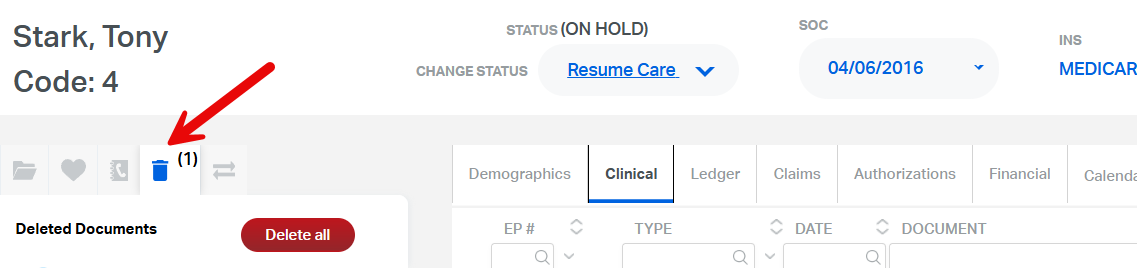
- If permanently deleting a single document, right-click the item and select Permanently Delete.
- If trying to permanently delete all items, use the Delete All button.
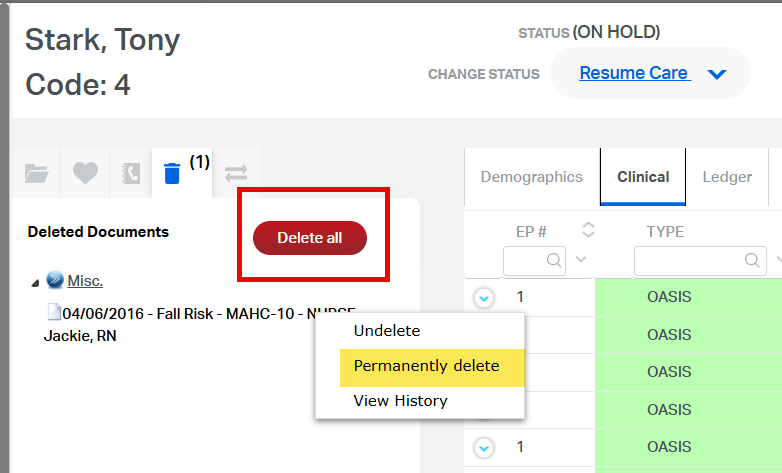
Important: Permanently deleted documents cannot be undone.
This FAQ was generated based on Synergy AI/EMR App Version 7.0.38.36159 and Dashboards Version: 7.0.38.14741
Important: The information in this FAQ is based on the software version available at the time of publication and is subject to change. Please use the software responsibly. HealthCare Synergy is not liable for any issues resulting from outdated or incorrect use of this information.
Was this article helpful?
That’s Great!
Thank you for your feedback
Sorry! We couldn't be helpful
Thank you for your feedback
Feedback sent
We appreciate your effort and will try to fix the article