Non-electronic documents received by the agency can be scanned and uploaded to patient records as attachments for better record keeping.
Uploading Attachments via Patient's Intake:
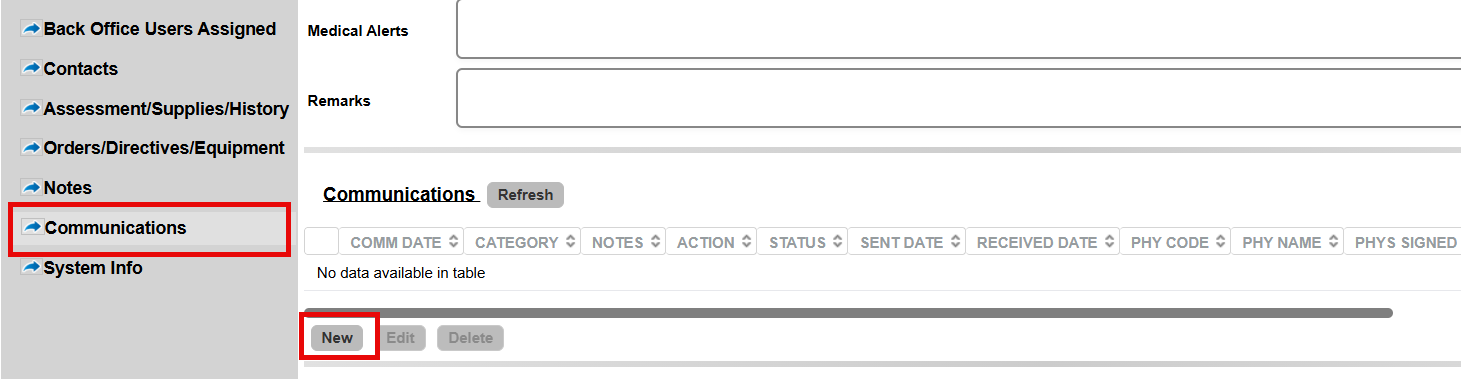
- Open the patient's Intake.
- Go to the Communications tab and click NEW.
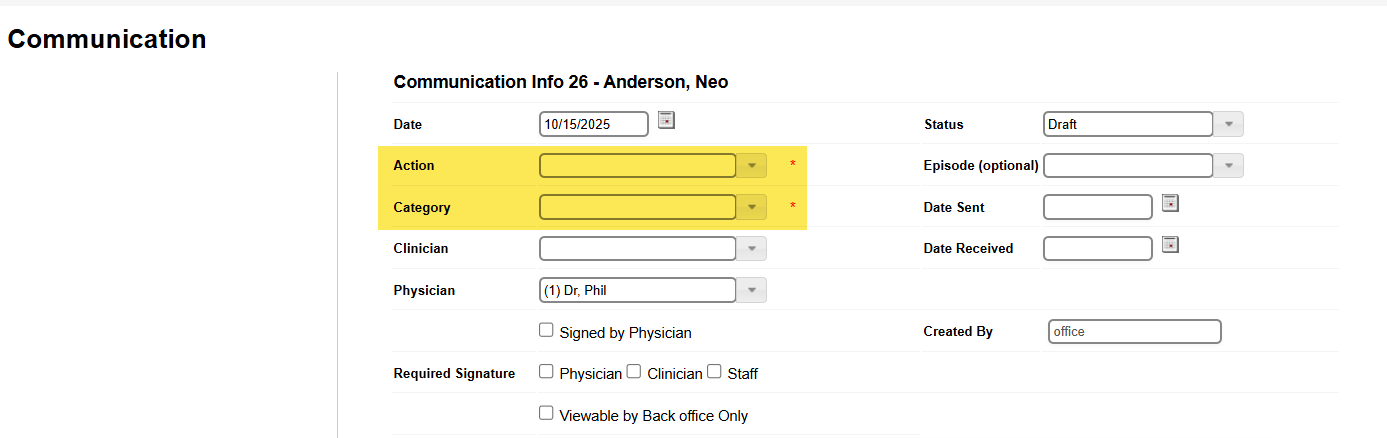
- Fill out the required fields such as Action and Category.
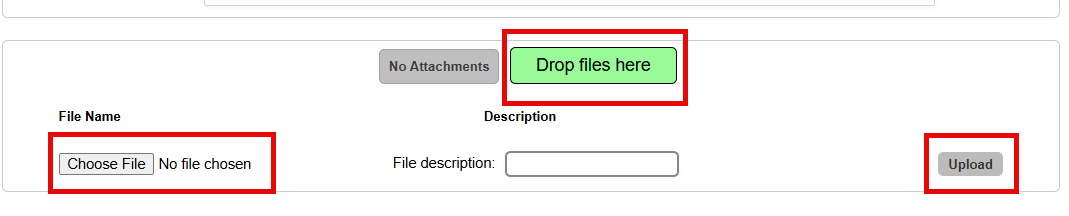
- Upload attachments at the bottom section of the communication window.
- Click Create & Close to save.
Uploading Attachments via Patient's Chart:
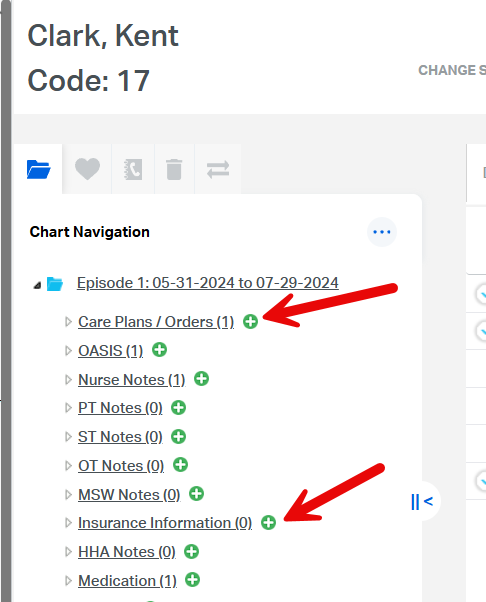
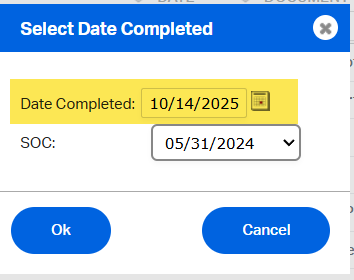
- Click the green plus (+) sign under chart navigation in any chart category.
- Enter the date.
- Click the NEW Communication button.
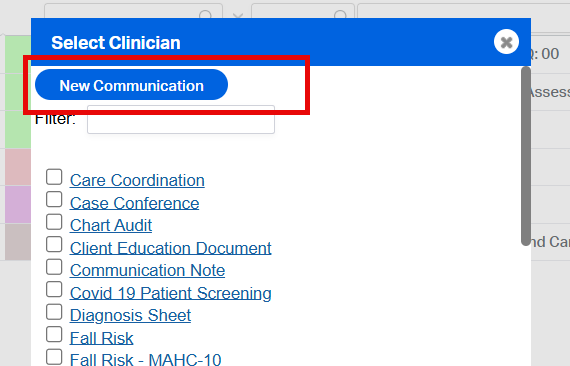
- Upload attachments as described above.
Uploading Attachments Inside Documents:
- From the chart view, right-click on the document where you want to upload attachments and select Attachments.
- Alternatively, open the document and click the paper icon (attachment icon) at the upper right side to upload files as attachments.
This FAQ was generated based on Synergy AI/EMR App Version 7.0.38.36159 and Dashboards Version: 7.0.38.14741
Important: The information in this FAQ is based on the software version available at the time of publication and is subject to change. Please use the software responsibly. HealthCare Synergy is not liable for any issues resulting from outdated or incorrect use of this information.
Was this article helpful?
That’s Great!
Thank you for your feedback
Sorry! We couldn't be helpful
Thank you for your feedback
Feedback sent
We appreciate your effort and will try to fix the article