All OASIS assessments must be submitted to iQIES. To be ready for submission, each OASIS must first be locked, making it eligible for inclusion in the OASIS Submission File
To lock an OASIS document/Standalone OASIS, follow these steps based on the type of OASIS and the view you're using:
- Ensure OASIS Is Complete and Validated
- Before locking, the OASIS must be:
- Fully completed
- Successfully validated (no outstanding validation errors)
- If Using OASIS Assessment Documents
- Approve the document to trigger the lock.
- The system locks it automatically upon approval.
- If Using a Standalone OASIS
- After validation, lock the OASIS using one of the following methods:
- In Normal View: Right-click on the document and select Lock.

- In Classic View: Click the Lock button at the bottom in Cases tab
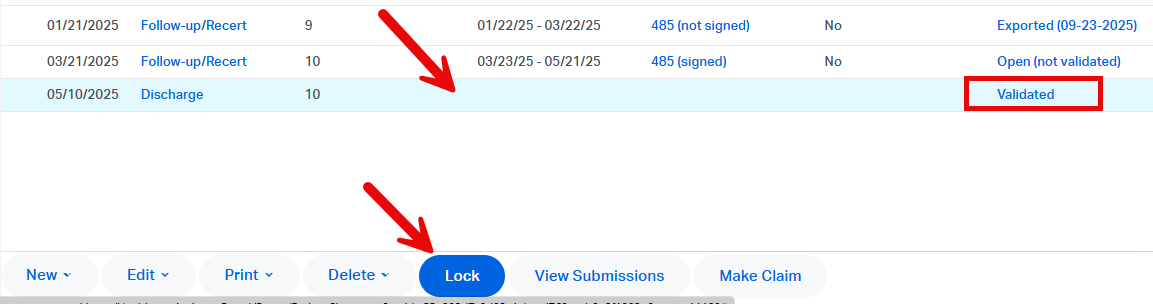
- In Normal View: Right-click on the document and select Lock.
- After validation, lock the OASIS using one of the following methods:
This FAQ was generated based on Synergy AI/EMR App Version 7.0.38.36159 and Dashboards Version: 7.0.38.14741
Important: The information in this FAQ is based on the software version available at the time of publication and is subject to change. Please use the software responsibly. HealthCare Synergy is not liable for any issues resulting from outdated or incorrect use of this information.
Was this article helpful?
That’s Great!
Thank you for your feedback
Sorry! We couldn't be helpful
Thank you for your feedback
Feedback sent
We appreciate your effort and will try to fix the article