You can generate a report to track expired or soon-to-expire certifications/licenses using information from the Clinician Library.
Steps to Run the Expired/Expiring License Report
- Go to:
Reports > Open Reports > Library Reports > Caregiver List
OR
Reports > Open Reports > Caregiver Reports > List - In the report filter screen:
- Change the Clinician Filter to:
- All Non-Physicians
- Or select a specific discipline (e.g., RN, PT, OT)
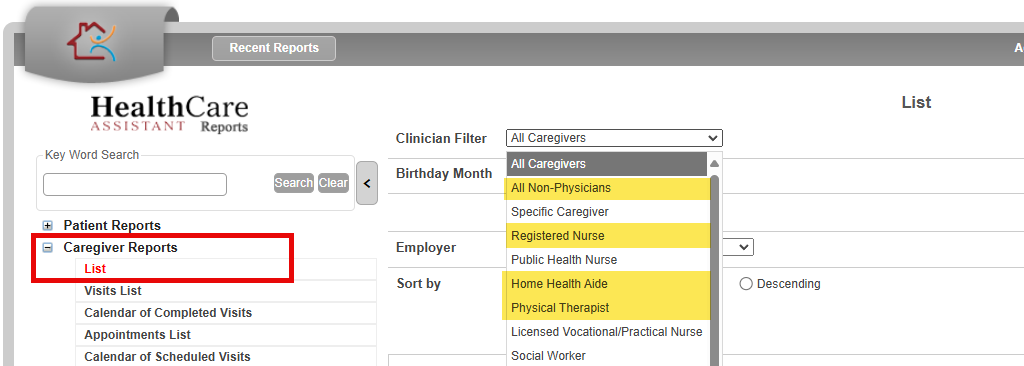
- Change the Clinician Filter to:
- Adjust the Certification Expiration Date Range
- Enter a From/To date to catch upcoming expirations (e.g., Custom Date, Current Month, Current Year, All)

- Check the box:
✅ Include Certification/Licenses
✅ Show Only Expired/Expiring Certifications/Licenses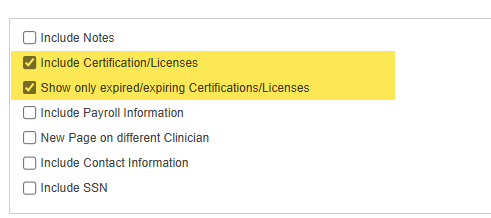
- Enter a From/To date to catch upcoming expirations (e.g., Custom Date, Current Month, Current Year, All)
- Click Print to generate and preview the report.
Tip: Run this report in advance to stay ahead of expirations and make sure licenses are up to date.
This FAQ was generated based on Synergy AI/EMR App Version 7.0.38.36159 and Dashboards Version: 7.0.38.14741
Important: The information in this FAQ is based on the software version available at the time of publication and is subject to change. Please use the software responsibly. HealthCare Synergy is not liable for any issues resulting from outdated or incorrect use of this information.
Was this article helpful?
That’s Great!
Thank you for your feedback
Sorry! We couldn't be helpful
Thank you for your feedback
Feedback sent
We appreciate your effort and will try to fix the article