To help track patients who are approaching their recertification period, Synergy AI/EMR provides multiple ways to generate a Recert Due list or report.
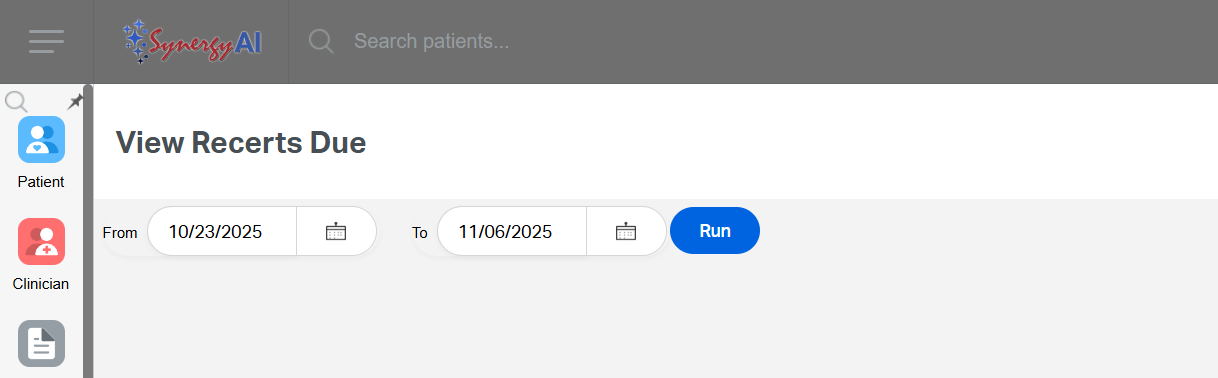
Option 1: From the Home Screen
- Click the Patient menu.
- Select View Recerts Due.
- Choose the appropriate date range.
- Click RUN to generate the list.
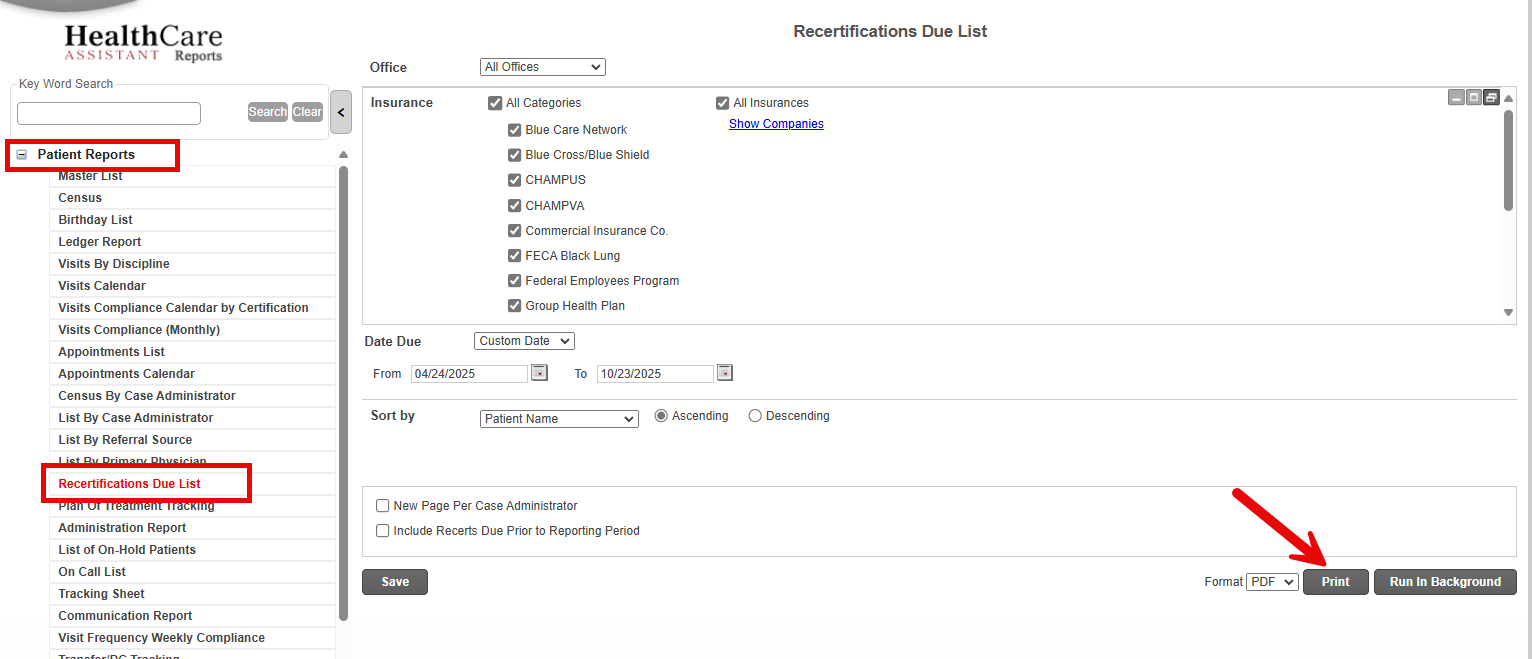
Option 2: Through Classic Reports
- Go to Reports > Open Reports.
- Navigate to Patient Reports > Recertification Due List.
- Adjust filters (e.g. date range, insurance filters) as needed.
- Click Print to preview or generate the report.
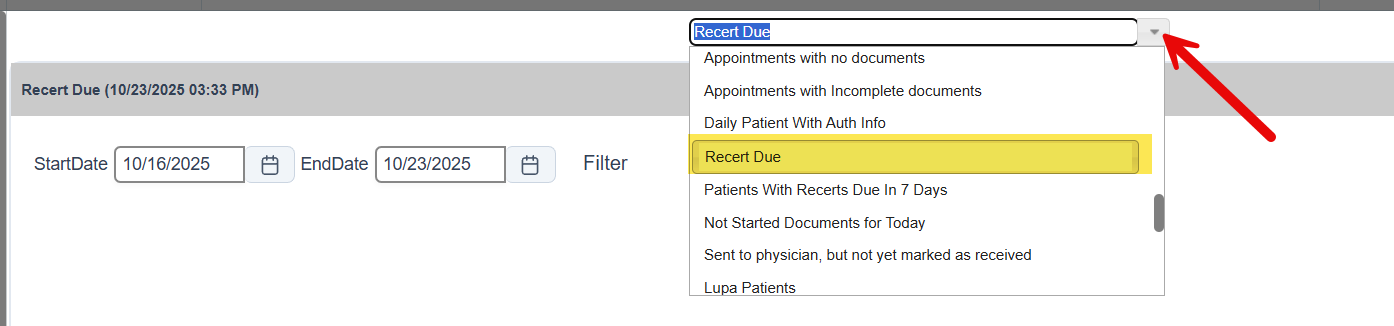
Option 3: Through Dashboard Reports
- Go to Reports > Open Dashboards.
- Select Recert Due from the dropdown menu.
- Apply any additional filters as needed.
This FAQ was generated based on Synergy AI/EMR App Version 7.0.38.36159 and Dashboards Version: 7.0.38.14741
Important: The information in this FAQ is based on the software version available at the time of publication and is subject to change. Please use the software responsibly. HealthCare Synergy is not liable for any issues resulting from outdated or incorrect use of this information.
Was this article helpful?
That’s Great!
Thank you for your feedback
Sorry! We couldn't be helpful
Thank you for your feedback
Feedback sent
We appreciate your effort and will try to fix the article