Synergy allows your agency to customize and track clinician certifications and licenses, including expiration dates.
Add Certification/License Types (Agency-Wide Setup)
Before assigning certifications to individual clinicians, you must first define them for your agency.
Steps:
- Go to Settings > Agency Set-Up Information
- Double-click your agency name to open the settings
- Navigate to the Certifications / Fee Schedules tab
- Click New Certification
- Enter the Certification or License Name (e.g., RN License, CPR, IV License)
- Click Save
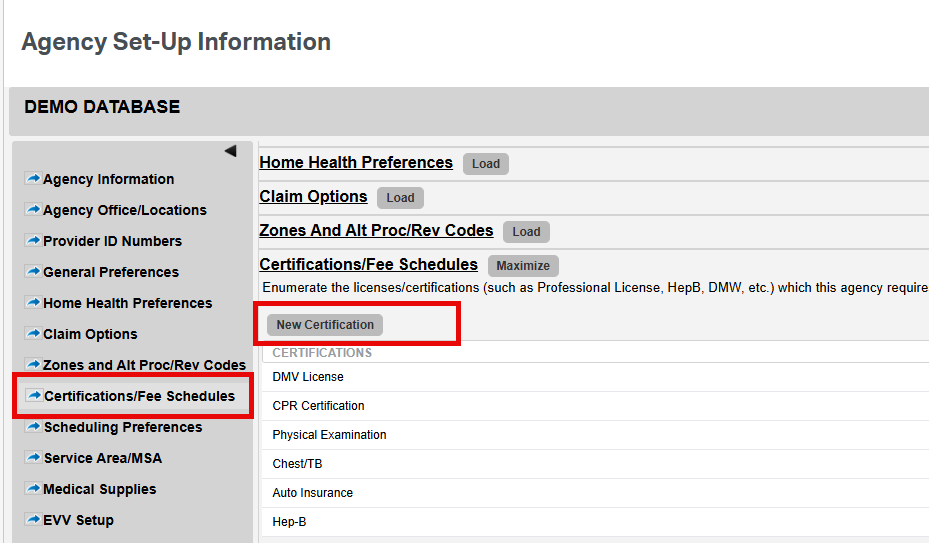
These will now be available on each clinician profiles.
Entering Certification Information to Individual Clinicians
Once certifications are added in the agency setup:
- Go to Clinician > Clinician Library
- Open the clinician's profile
- Scroll to the Certifications section
- Enter details such as:
- License/Certification Number
- Expiration Date
- License/Certification Number
- Click Save
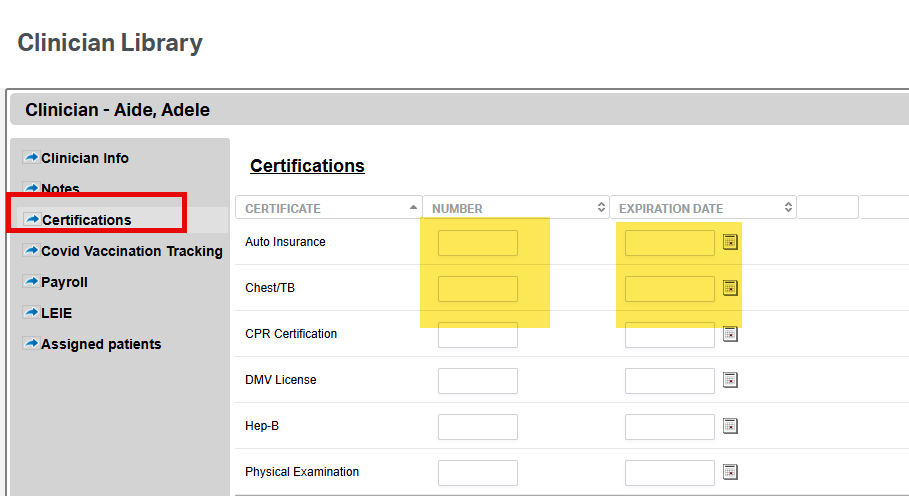
Tip: Synergy EMR also has a report that can help track expiring/expired licenses.
This FAQ was generated based on Synergy AI/EMR App Version 7.0.38.36159 and Dashboards Version: 7.0.38.14741
Important: The information in this FAQ is based on the software version available at the time of publication and is subject to change. Please use the software responsibly. HealthCare Synergy is not liable for any issues resulting from outdated or incorrect use of this information.
Was this article helpful?
That’s Great!
Thank you for your feedback
Sorry! We couldn't be helpful
Thank you for your feedback
Feedback sent
We appreciate your effort and will try to fix the article