Some agencies working with Consultants may be required to submit claims in a specific file format (CSV or Excel). Synergy allows you to configure this setting and export accordingly.
Step 1: Enable Consultant Format for Claims
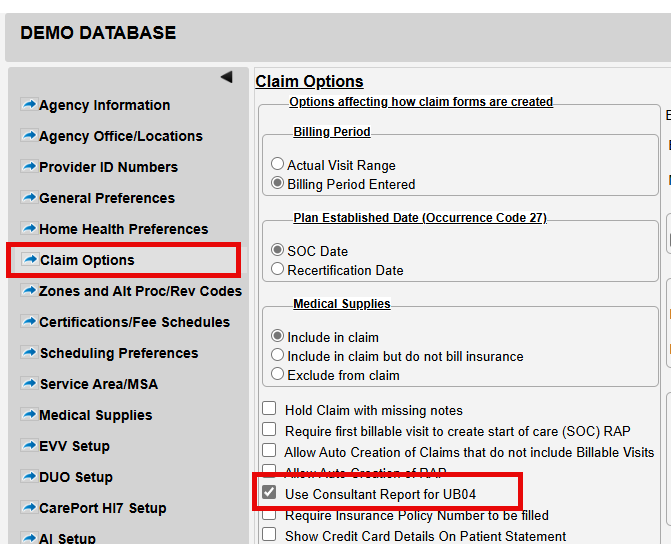
- Go to: Settings > Agency Set-Up Information
- Double-click your agency name to edit settings.
- Navigate to the Claim Option tab.
- Check the box: "Use Consultant Report for UB04"
- Click Save.
Step 2: Export a Claim in Consultant Format
- Go to the patient's chart and click the Claims tab.
- Locate the claim you need to export.
- Right-click on the claim.
- Select Print Claim.
- From the print options, choose: Export to CSV format OR Export to Excel format
- From the print options, choose: Export to CSV format OR Export to Excel format
Tip: Make sure to verify with the Consultant whether they require CSV or Excel format to ensure compatibility.
This FAQ was generated based on Synergy AI/EMR App Version 7.0.38.36159 and Dashboards Version: 7.0.38.14741
Important: The information in this FAQ is based on the software version available at the time of publication and is subject to change. Please use the software responsibly. HealthCare Synergy is not liable for any issues resulting from outdated or incorrect use of this information.
Was this article helpful?
That’s Great!
Thank you for your feedback
Sorry! We couldn't be helpful
Thank you for your feedback
Feedback sent
We appreciate your effort and will try to fix the article