If you're a clinician using Synergy EMR and don't see your patient(s) under the ‘My Patients' tile in CGA, there are a few common reasons why:
1. Patient May Be Discharged
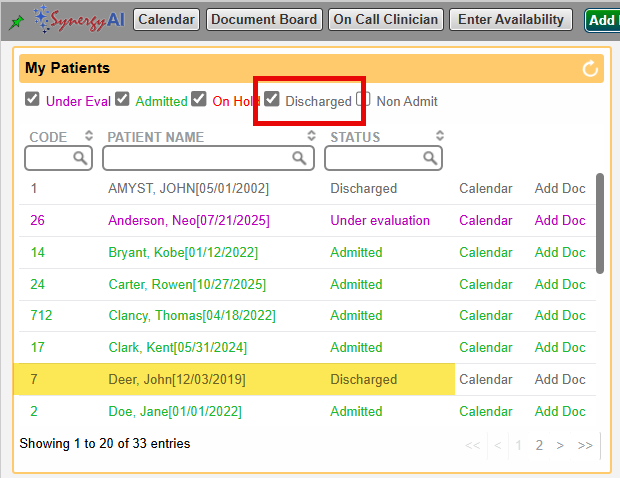
By default, CGA only shows active patients. If the patient has been discharged, they won't appear unless you change the filter.
How to Fix:
- Go to the ‘My Patients' tile.
- Check the box for ‘Discharged status'.
- Discharged patients should now be visible.
2. Clinician Not Assigned to the Patient
If you're not yet assigned to the patient, they will not appear in your patient list.
How to Fix:
Ask a Back Office user to check the following:
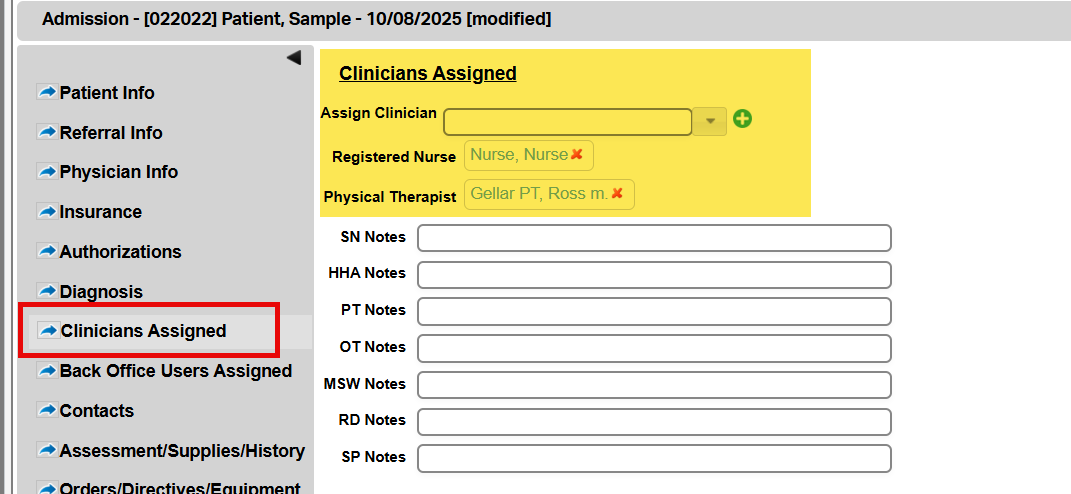
- Open the patient's Intake record.
- Go to the ‘Clinicians Assigned' tab.
- Confirm that clinician name appears in the list.
Ways to Assign a Clinician to a Patient
A back office user can assign you in one of three ways:
- Schedule an Appointment
When a clinician is scheduled for a session, they are automatically assigned to that patient. - Assign as Case Admin
Setting a clinician as the Case Administrator will also automatically assign them. - Manual Assignment
Go to Patient Intake > Clinicians Assigned tab
Select the clinician manually from the Assign Clinician dropdown
This FAQ was generated based on Synergy AI/EMR App Version 7.0.38.36159 and Dashboards Version: 7.0.38.14741
Important: The information in this FAQ is based on the software version available at the time of publication and is subject to change. Please use the software responsibly. HealthCare Synergy is not liable for any issues resulting from outdated or incorrect use of this information.
Was this article helpful?
That’s Great!
Thank you for your feedback
Sorry! We couldn't be helpful
Thank you for your feedback
Feedback sent
We appreciate your effort and will try to fix the article