If a document was attached to the wrong clinician, you can reassign it to the correct clinician as long as certain conditions are met. This ensures accurate documentation and proper clinical responsibility.
Steps:
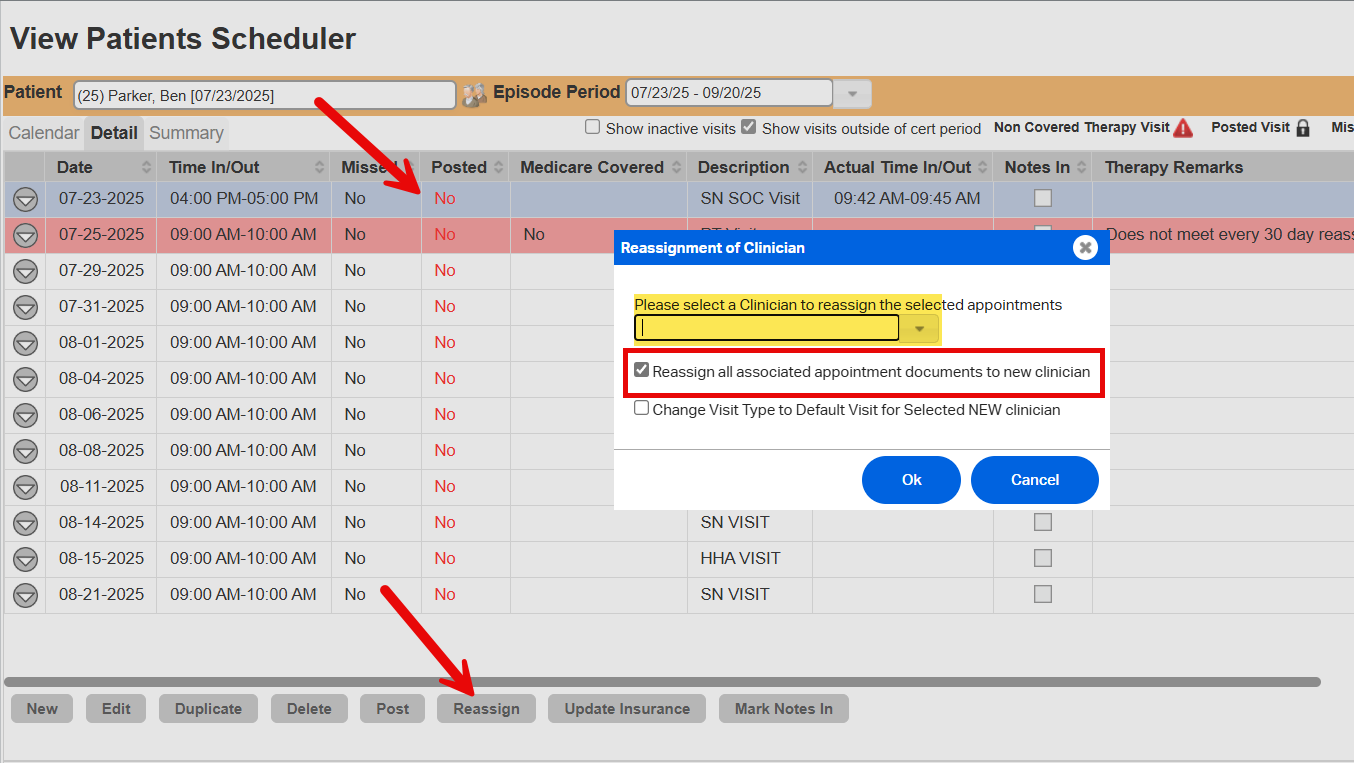
- Go to Patient Scheduler.
- Click the DETAIL tab.
- Select the appointment associated with the document.
- Click Reassign at the bottom of the screen.
- Choose the correct clinician.
- Put a check on Reassign all associated appointment documents to new clinician box
- Click Ok to save changes
Requirements:
- The appointment must not be posted.
- The document status must be In Progress.
This FAQ was generated based on Synergy AI/EMR App Version 7.0.38.36159 and Dashboards Version: 7.0.38.14741
Important: The information in this FAQ is based on the software version available at the time of publication and is subject to change. Please use the software responsibly. HealthCare Synergy is not liable for any issues resulting from outdated or incorrect use of this information.
Was this article helpful?
That’s Great!
Thank you for your feedback
Sorry! We couldn't be helpful
Thank you for your feedback
Feedback sent
We appreciate your effort and will try to fix the article