Claims can have different statuses depending on their progress. In some cases, the claim status may need to be manually updated for tracking, auditing, or workflow purposes.
Steps to Change Claim Status
- Go to any patient chart.
- Click on the Claims tab.
- Locate the claim you need to update and click to select it.
- Click the Status button.
- Select the appropriate status from the list below
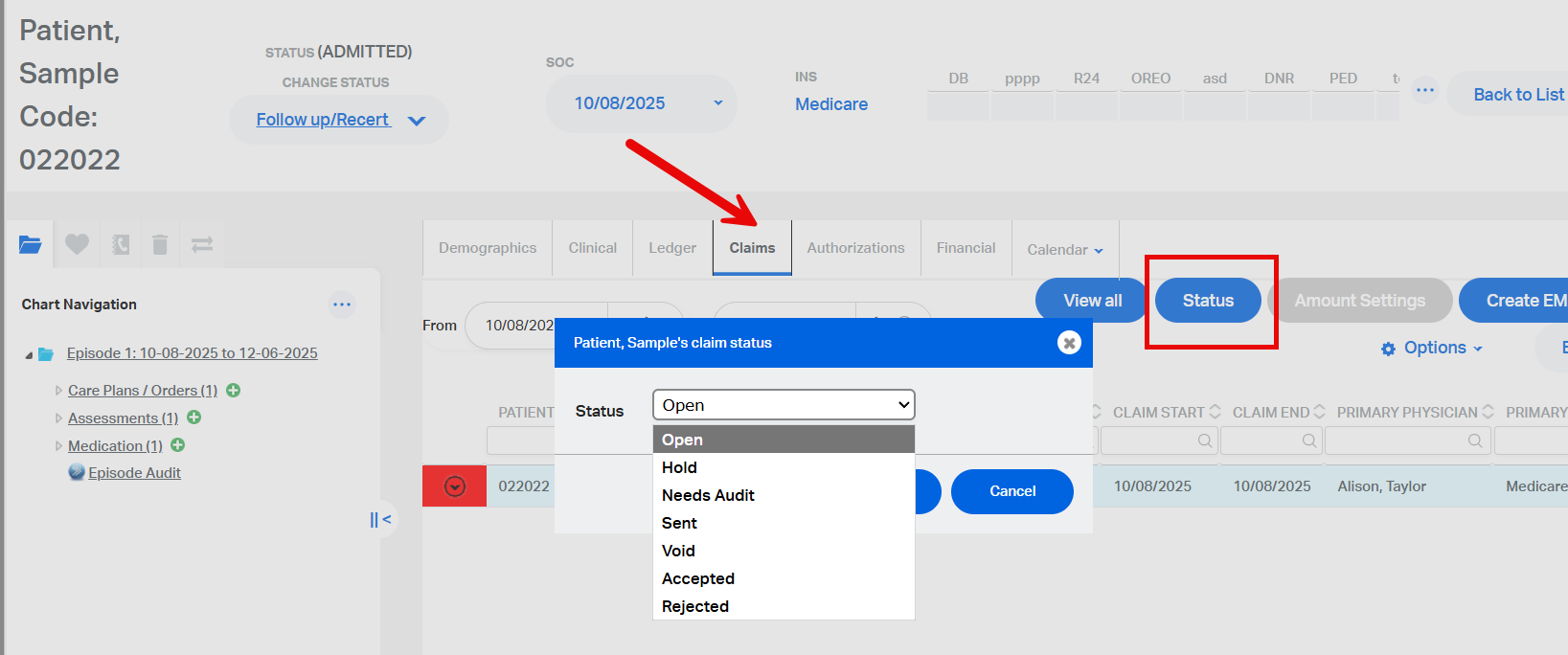
Claim Status Options and Descriptions
- Open - Marks the claim as open. The claim will be available for submission.
- Hold - Status appears in blue. Claim can be sent but is marked for review.
- Needs Audit - For internal use only. Indicates that the agency wants to audit the claim before submission.
- Sent - Marks the claim as Sent and logs the Sent Date.
- Void - Marks the claim as voided and allows it to be recreated.
Note: Once a claim is marked as Void, it cannot be deleted or changed to another status. - Accepted - Users can manually mark a claim as Accepted for tracking purposes.
- Rejected - Users can manually mark a claim as Rejected for tracking purposes.
Important Notes
- Only authorized users should change claim statuses.
- Void status is final and should only be used when necessary.
This FAQ was generated based on Synergy AI/EMR App Version 7.0.38.36159 and Dashboards Version: 7.0.38.14741
Important: The information in this FAQ is based on the software version available at the time of publication and is subject to change. Please use the software responsibly. HealthCare Synergy is not liable for any issues resulting from outdated or incorrect use of this information.
Was this article helpful?
That’s Great!
Thank you for your feedback
Sorry! We couldn't be helpful
Thank you for your feedback
Feedback sent
We appreciate your effort and will try to fix the article