To accurately record and bill for medical supply usage within the patient chart and financial ledger.
Step 1: Add Medical Supplies to Chart of Accounts
- Navigate to: Claims/Auth > Chart of Accounts Settings
- Click NEW to create a new entry.
- Click Auto Assign to generate an account code.
- Enter the appropriate Standard Revenue Code:
- 0270 – Non-Routine Supplies
- 0623 – Wound Care Related Supplies
- Set the Account Type to Procedure/Revenue.
- Check the following boxes:
- Active
- Billable(if applicable)
- Active
- Configure:
- Group, Unit Type, and Visit Frequency Group as needed.
- Group, Unit Type, and Visit Frequency Group as needed.
Step 2: Post Medical Supplies to a Patient Ledger
- Go to the patient's chart.
- Click on the Ledger tab.
- Select NEW > Medical Supplies, then click OK.
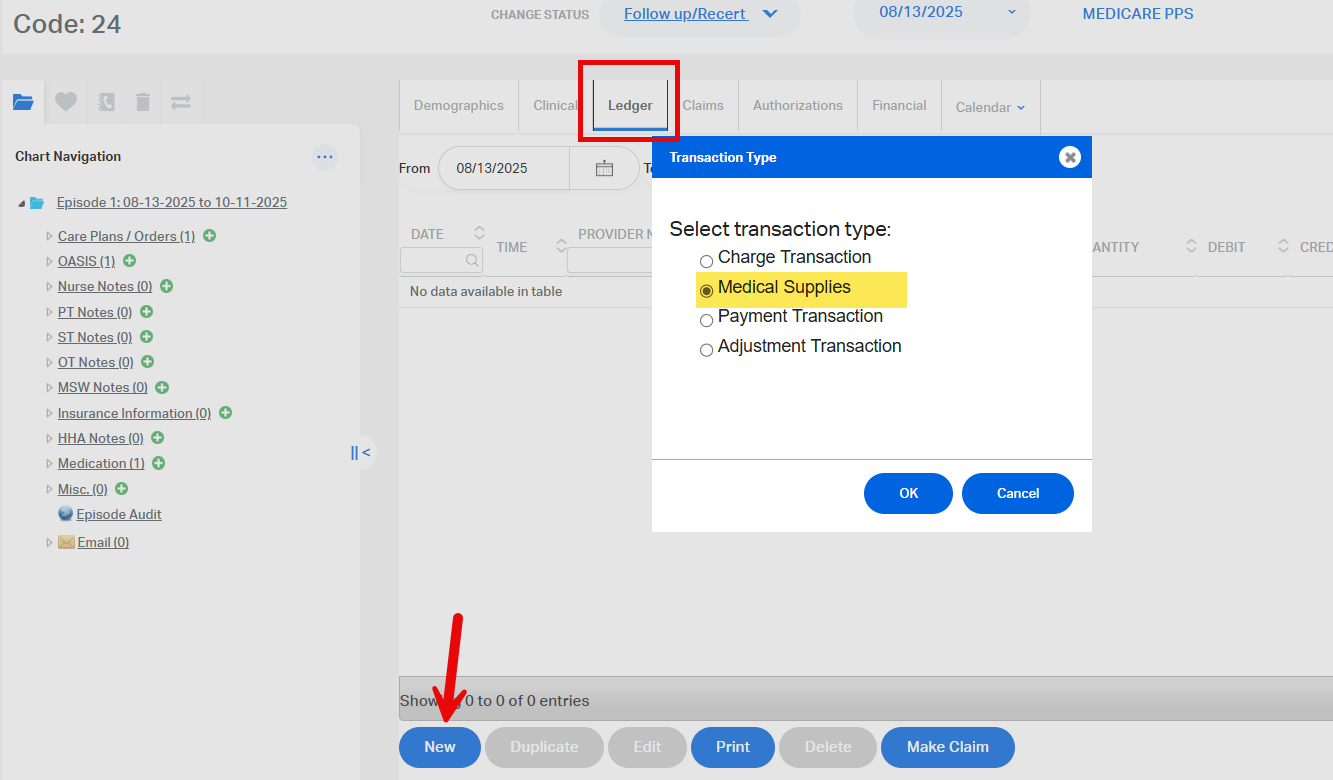
- Fill out the required information:
- Charge - select from Chart of Account drop down
- Quantity
- Click Save to post the entry.
This FAQ was generated based on Synergy AI/EMR App Version 7.0.38.36159 and Dashboards Version: 7.0.38.14741
Important: The information in this FAQ is based on the software version available at the time of publication and is subject to change. Please use the software responsibly. HealthCare Synergy is not liable for any issues resulting from outdated or incorrect use of this information.
Was this article helpful?
That’s Great!
Thank you for your feedback
Sorry! We couldn't be helpful
Thank you for your feedback
Feedback sent
We appreciate your effort and will try to fix the article