Archiving is used to hide patient records that are no longer active—such as patients who have passed away or records older than 7 years. Archived patients are hidden from the main patient list but will still appear in reports.
To Archive a Patient:
- Click the Patient menu and select View All Patients.
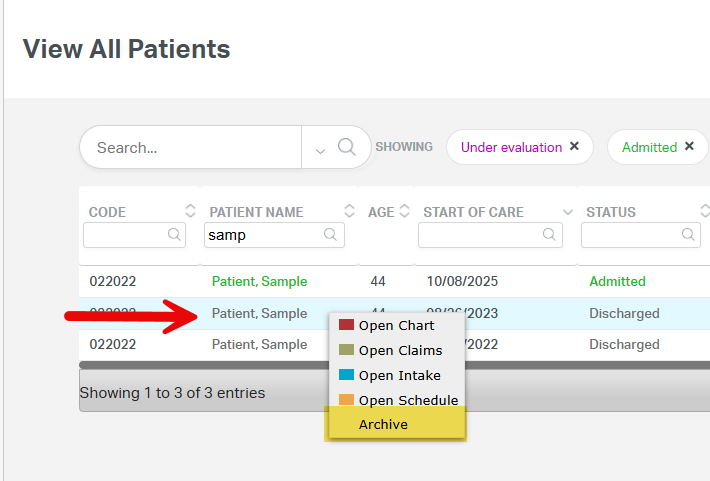
- Locate the patient you wish to archive.
- Right-click on the patient's name.
- Choose Archive from the menu.
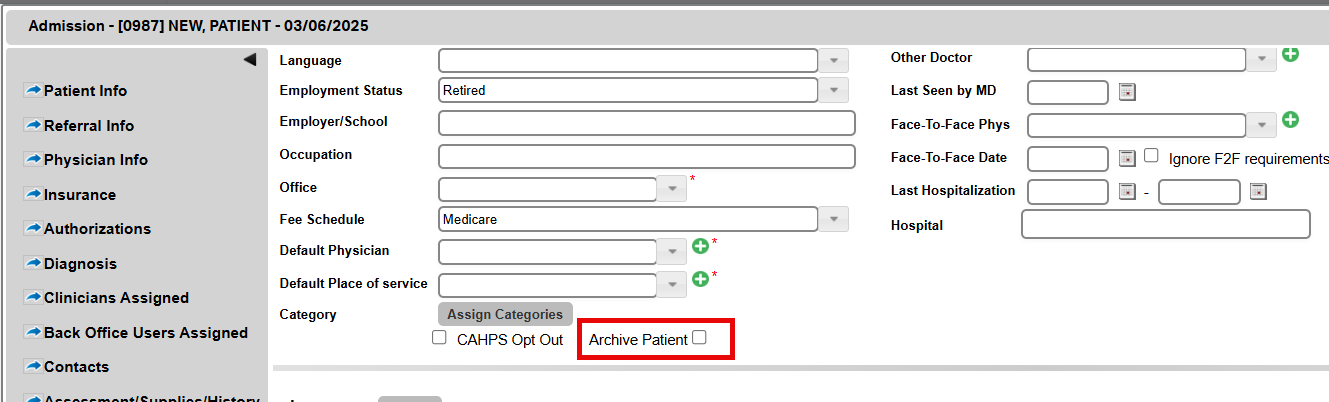
- Alternatively, click on the patient's name to open their Intake screen, then check the Archive Patient box and save
To Unarchive a Patient:
- Go to Patient > View All Patients.
- Click the dropdown next to the search bar.
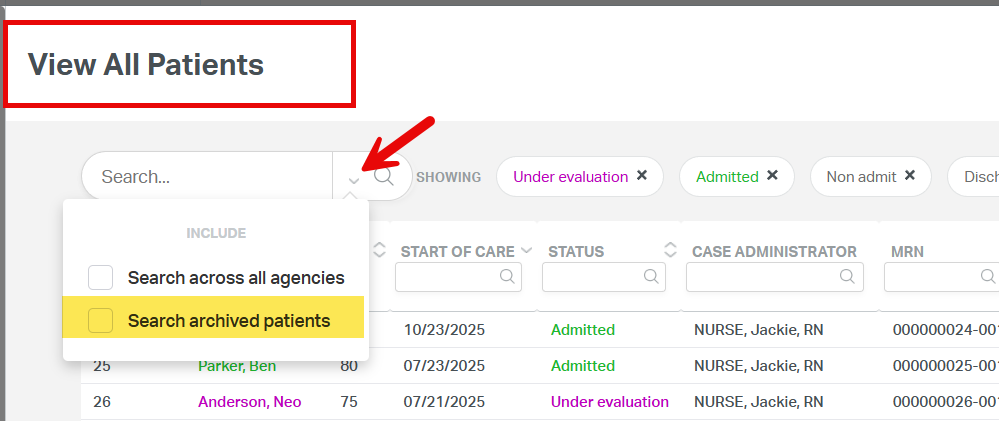
- Check the option Search Archived Patients, then click the magnifying glass icon to reload the list.
- Search for the patient by name or patient code.
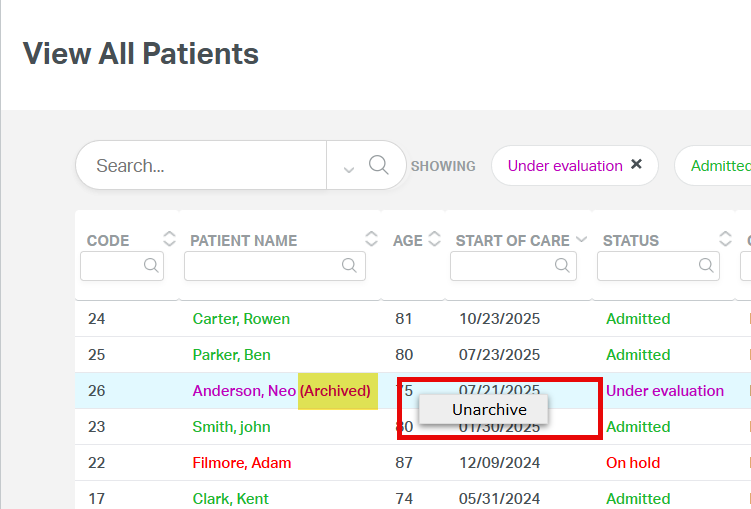
- Right-click on the archived patient and choose Unarchive.
This FAQ was generated based on Synergy AI/EMR App Version 7.0.38.36159 and Dashboards Version: 7.0.38.14741
Important: The information in this FAQ is based on the software version available at the time of publication and is subject to change. Please use the software responsibly. HealthCare Synergy is not liable for any issues resulting from outdated or incorrect use of this information.
Was this article helpful?
That’s Great!
Thank you for your feedback
Sorry! We couldn't be helpful
Thank you for your feedback
Feedback sent
We appreciate your effort and will try to fix the article