This is a two-step process:
Step 1: Add Clinician to the Library
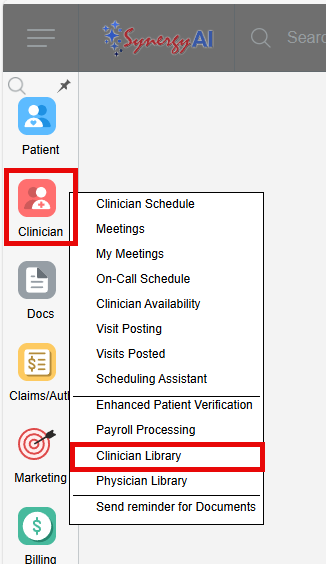
- Go to Clinician menu > Clinician Library
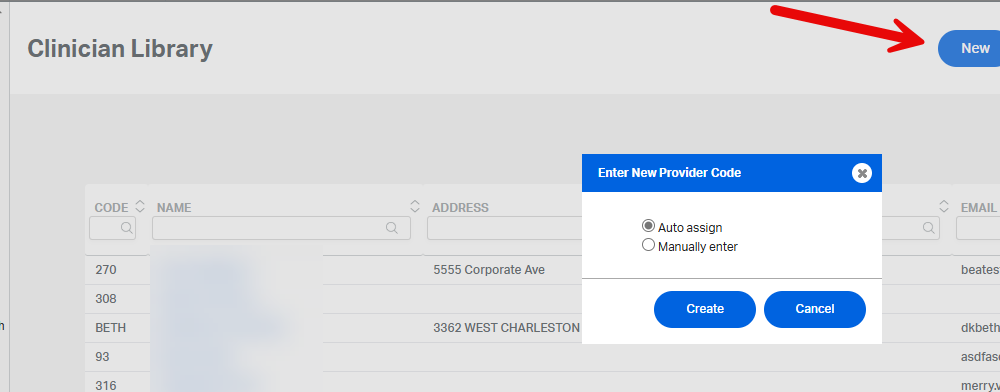
- Click New, then choose either:
- Auto Assign: System assigns unique ID
- Manually Enter: You enter a unique ID manually
- Enter required details, Clinician's full name and Classification
- Enter Date of Birth and SSN
Important: These fields must not be skipped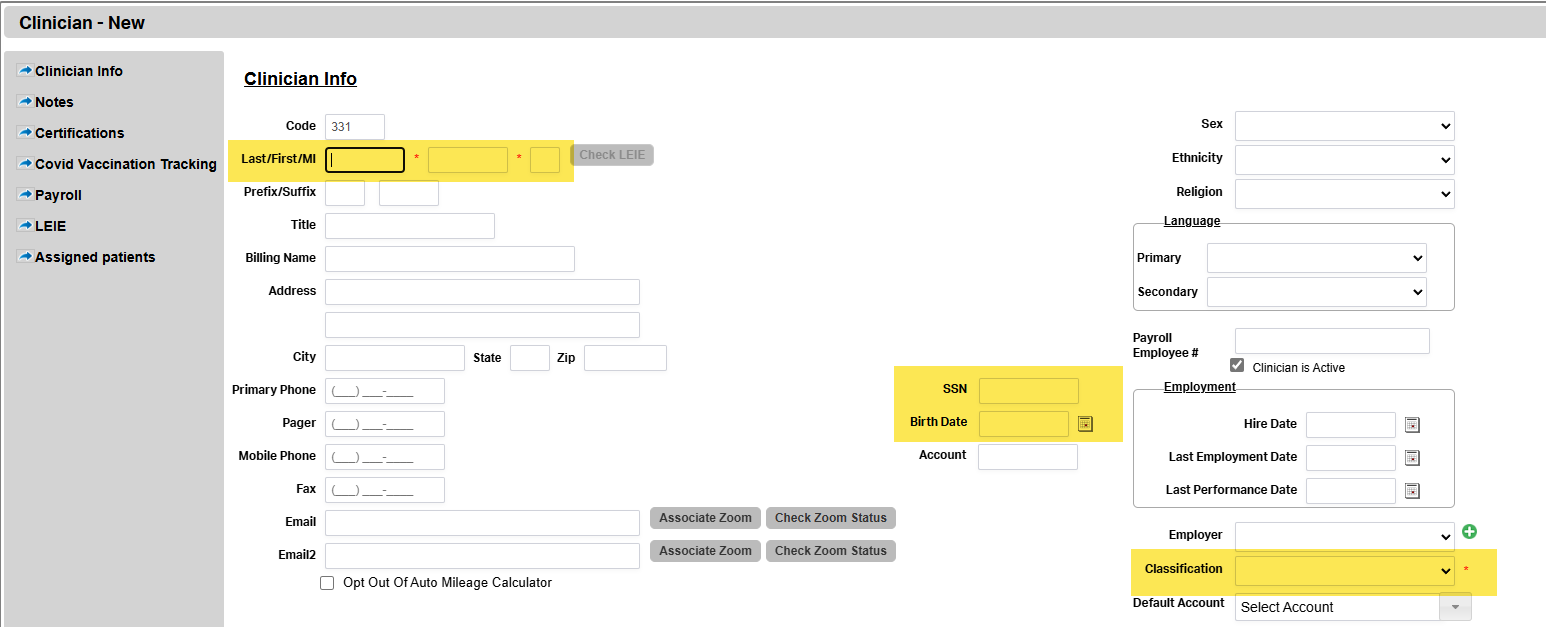
- Save.
Step 2: Create the Login
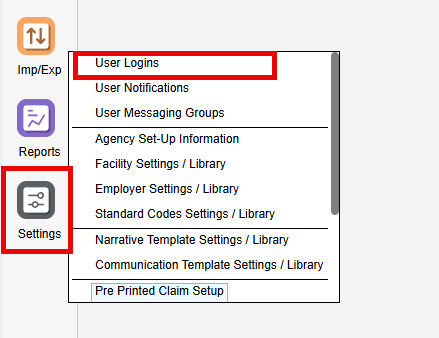
- Go to Settings > User Logins
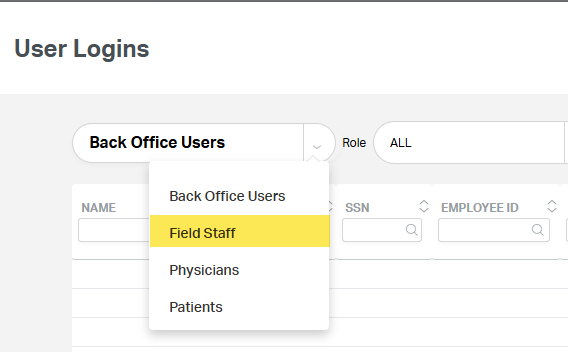
- Change: User Type: from Back Office to Field Staff
- With Login to Without Login
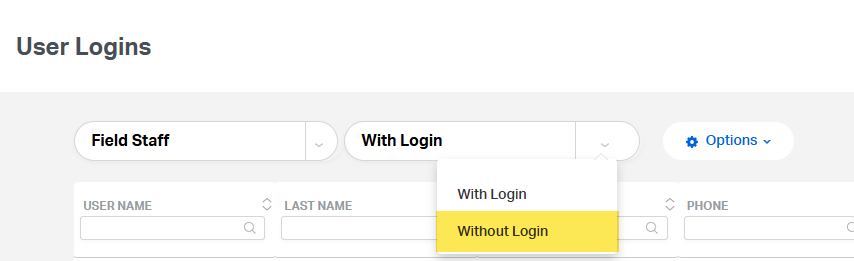
- Locate the clinician's name under the Without Login list
- Click the Add Login button next to their name
- Note: If the clinician's name is not showing, double-check Part 1 Steps 1-3.
- Fill in required fields:
- Username: Must be unique, no special characters
- Password: 8–15 characters AND Must include at least one number and one symbol
- Username: Must be unique, no special characters
Login is now created for your field staff.
This FAQ was generated based on Synergy AI/EMR App Version 7.0.38.36159 and Dashboards Version: 7.0.38.14741
Important: The information in this FAQ is based on the software version available at the time of publication and is subject to change. Please use the software responsibly. HealthCare Synergy is not liable for any issues resulting from outdated or incorrect use of this information.
Was this article helpful?
That’s Great!
Thank you for your feedback
Sorry! We couldn't be helpful
Thank you for your feedback
Feedback sent
We appreciate your effort and will try to fix the article