Agencies can create and use customized narrative templates to streamline documentation and improve consistency across clinical records.
Steps to Add Narrative Templates
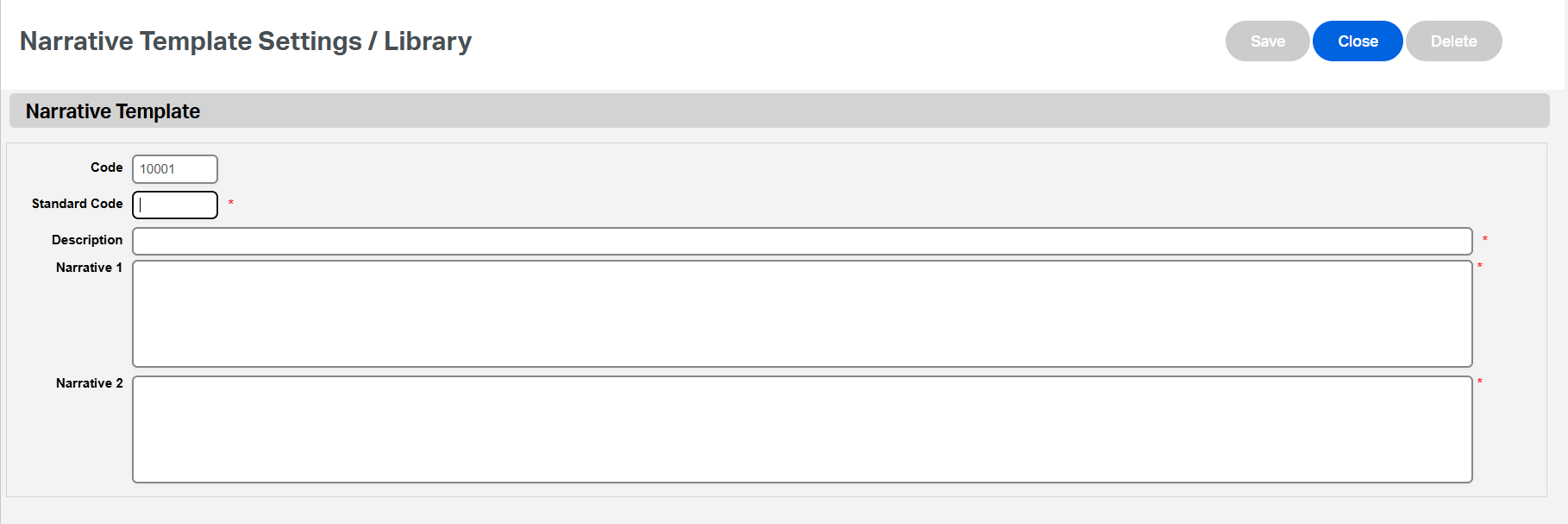
- Go to: Settings > Narrative Templates Settings / Library
- Click New to create a new template.
- Enter a unique ID - Maximum of 5 characters
- Complete all required fields:
- Standard Code:
A unique code to identify the template internally - Description:
The title of the narrative template (this is what users will see) - Narrative 1 and Narrative 2:
Enter your template content here
(You can pre-fill clinical statements, assessments, or custom documentation language)
- Standard Code:
- Click Save to add the template to your agency's library.
Additional Notes
- Templates created here will be available for staff to use within clinical documentation workflows.
- Encourage staff to standardize narrative content to ensure compliance and quality.
- Revisit and update templates periodically to match clinical and regulatory changes.
This FAQ was generated based on Synergy AI/EMR App Version 7.0.38.36159 and Dashboards Version: 7.0.38.14741
Important: The information in this FAQ is based on the software version available at the time of publication and is subject to change. Please use the software responsibly. HealthCare Synergy is not liable for any issues resulting from outdated or incorrect use of this information.
Was this article helpful?
That’s Great!
Thank you for your feedback
Sorry! We couldn't be helpful
Thank you for your feedback
Feedback sent
We appreciate your effort and will try to fix the article