To set up billing and revenue tracking for specific services by creating appropriate Chart of Account entries.
Steps to Create a New Chart of Account Entry:
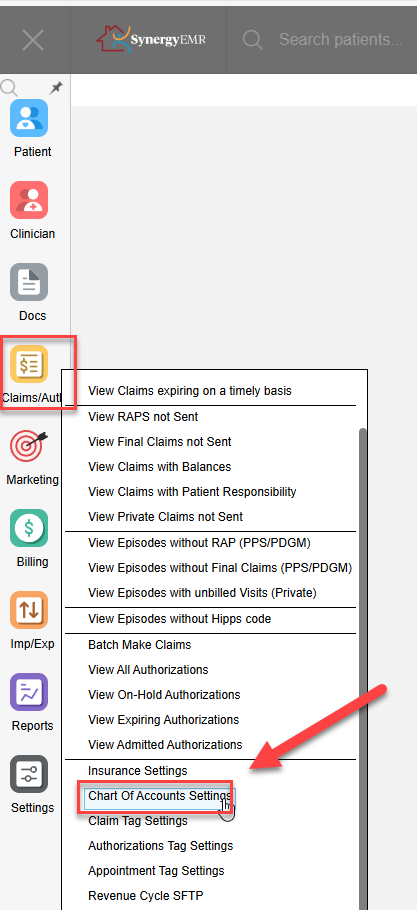
- Navigate to: Claims/Auth > Chart of Accounts Settings
- Click: NEW to begin a new entry.

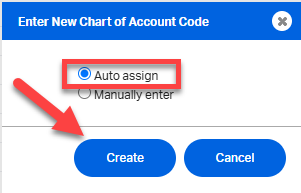
- Auto Assign: Click Auto Assign to automatically generate a user code.
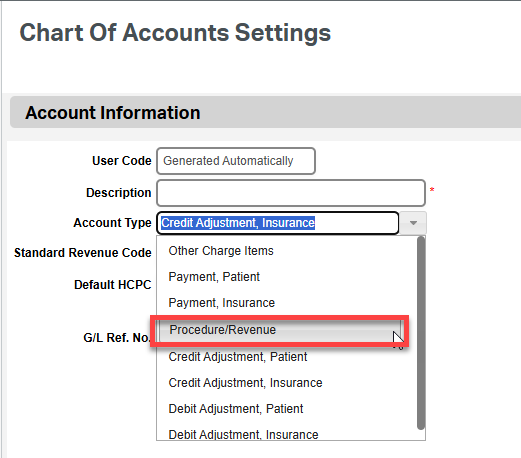
- Set Account Type: Procedure/Revenue
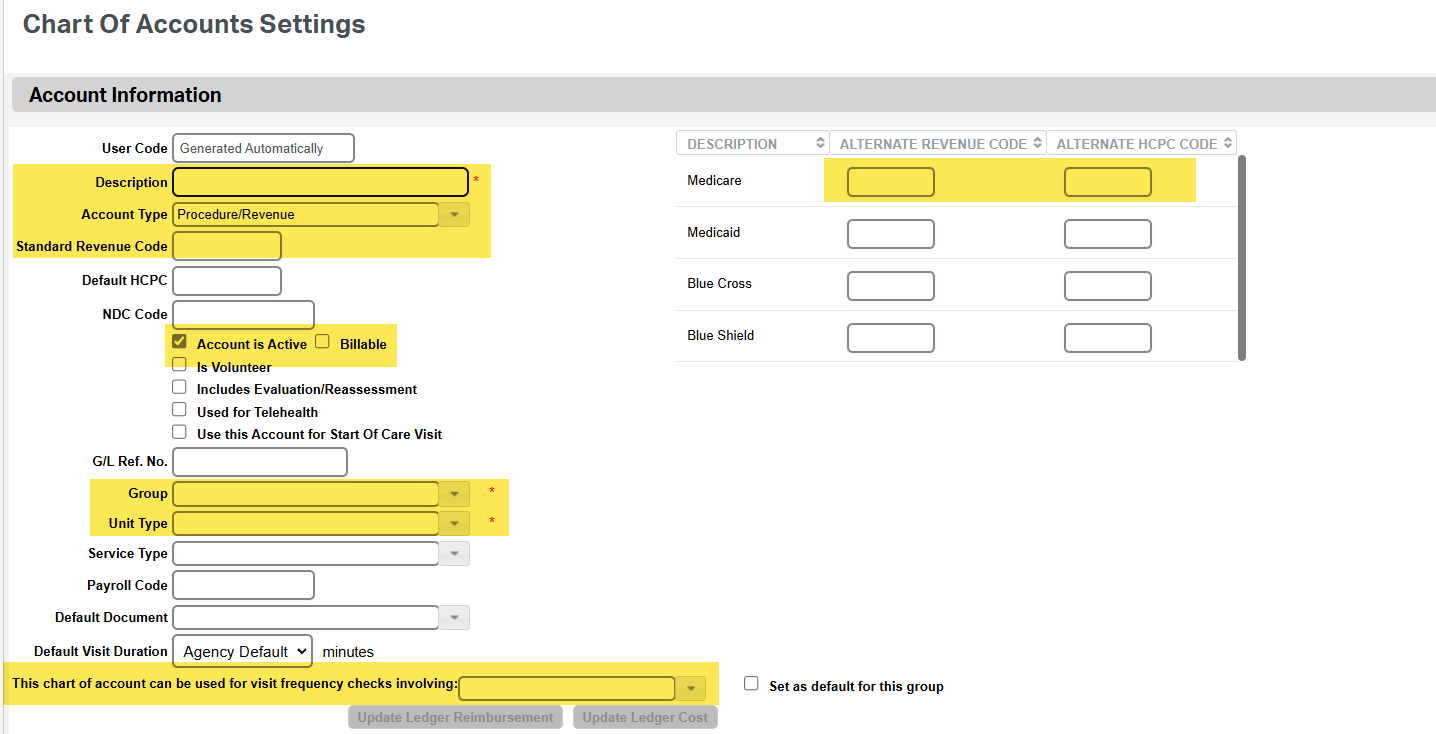
- Type in the "Description" (name of visit type)
- Check the following options:
- Active — to enable the account for use
- Billable — only if the visit/service is billable
- Configure the following fields:
- Group
- Unit Type
- Visit Frequency Group
- Group
- Add Usual Fee on Fee Schedule
Standard Revenue Codes:
Use the following codes according to the discipline:
Discipline | Revenue Code |
RN/LVN | 551 |
PT/PTA | 421 |
OT/OTA | 431 |
ST | 441 |
HHA | 571 |
MSW | 561 |
Alternate Revenue Codes for Medicare:
If required, enter alternate revenue and HCPC codes in the respective fields:
- Alternate Revenue Code
- Alternate HCPCS Code
Refer to the Medicare Home Health Billing Codes PDF for the correct values.
Reference: https://www.cgsmedicare.com/hhh/education/materials/pdf/home_health_billing_codes.pdf
This FAQ was generated based on Synergy AI/EMR App Version 7.0.38.36159 and Dashboards Version: 7.0.38.14741
Important: The information in this FAQ is based on the software version available at the time of publication and is subject to change. Please use the software responsibly. HealthCare Synergy is not liable for any issues resulting from outdated or incorrect use of this information.
Was this article helpful?
That’s Great!
Thank you for your feedback
Sorry! We couldn't be helpful
Thank you for your feedback
Feedback sent
We appreciate your effort and will try to fix the article