Step 1 — Navigate to Document Category Settings
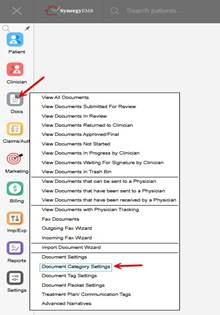
On the left-side menu, click on Docs. From the dropdown, select Document Category Settings.
Step 2 — Click "New"
On the Document Category Settings page, click the New button in the upper right corner.

Step 3 — Enter the Category Name and Save
In the Document Category Information form, enter the name of the new category in the Category Name field (required). Then click Save.
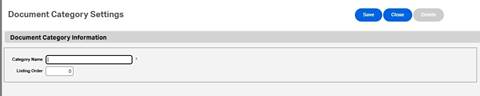
Note: The Listing Order field is optional. The number entered determines where this category appears in the list. You can leave it blank and update it later.
This FAQ was generated based on Synergy AI/EMR App Version 7.0.41.38129 and Dashboards Version: 7.0.41.15871
Important: The information in this FAQ is based on the software version available at the time of publication and is subject to change. Please use the software responsibly. HealthCare Synergy is not liable for any issues resulting from outdated or incorrect use of this information.
Was this article helpful?
That’s Great!
Thank you for your feedback
Sorry! We couldn't be helpful
Thank you for your feedback
Feedback sent
We appreciate your effort and will try to fix the article