Follow these steps:
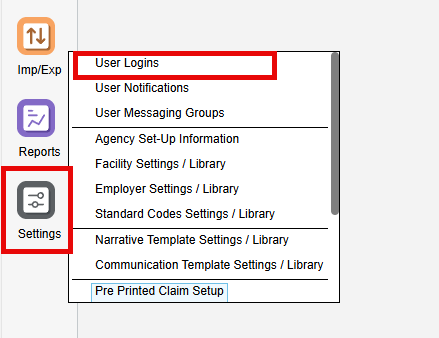
- Go to Settings > User Logins
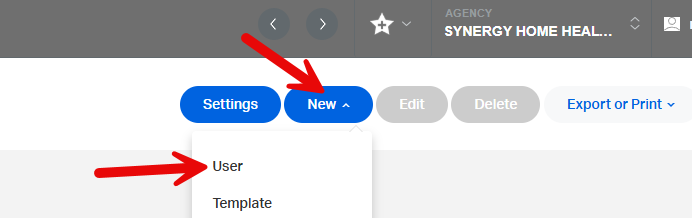
- Click New > User
- Fill out all required fields, including:
- Username:
- Must be unique
- No special characters
- Must be unique
- Password:
- Must be 8–15 characters
- Include at least one number and one symbol
- Must be 8–15 characters
- First Name and Last Name: Cannot be blank

- Username:
- Assign User Permissions accordingly.
- Save when done.
Tip: Put a check on Change password at next login box to force a user to update their password the next time they log in. This allows the admin to set a temporary password for initial log and in allows the user to set up their own password.
Once complete, the Back Office login will be created.
This FAQ was generated based on Synergy AI/EMR App Version 7.0.38.36159 and Dashboards Version: 7.0.38.14741
Important: The information in this FAQ is based on the software version available at the time of publication and is subject to change. Please use the software responsibly. HealthCare Synergy is not liable for any issues resulting from outdated or incorrect use of this information.
Was this article helpful?
That’s Great!
Thank you for your feedback
Sorry! We couldn't be helpful
Thank you for your feedback
Feedback sent
We appreciate your effort and will try to fix the article